Add your best jobs
Your best jobs are your proof. When a prospect sees work like theirs, the decision gets easier. Save three to start. You can always add more.
-
Open a new job
Click Proof in the menu, then New job. For work that is still going on, type the client's name and click Add job: your crew can then add photos. For work that is already finished, click Add a finished job.

-
Add your photos
Click the Before and After boxes if you have both. Visitors can then drag between the two. Add others with the + box, and people can swipe through them.
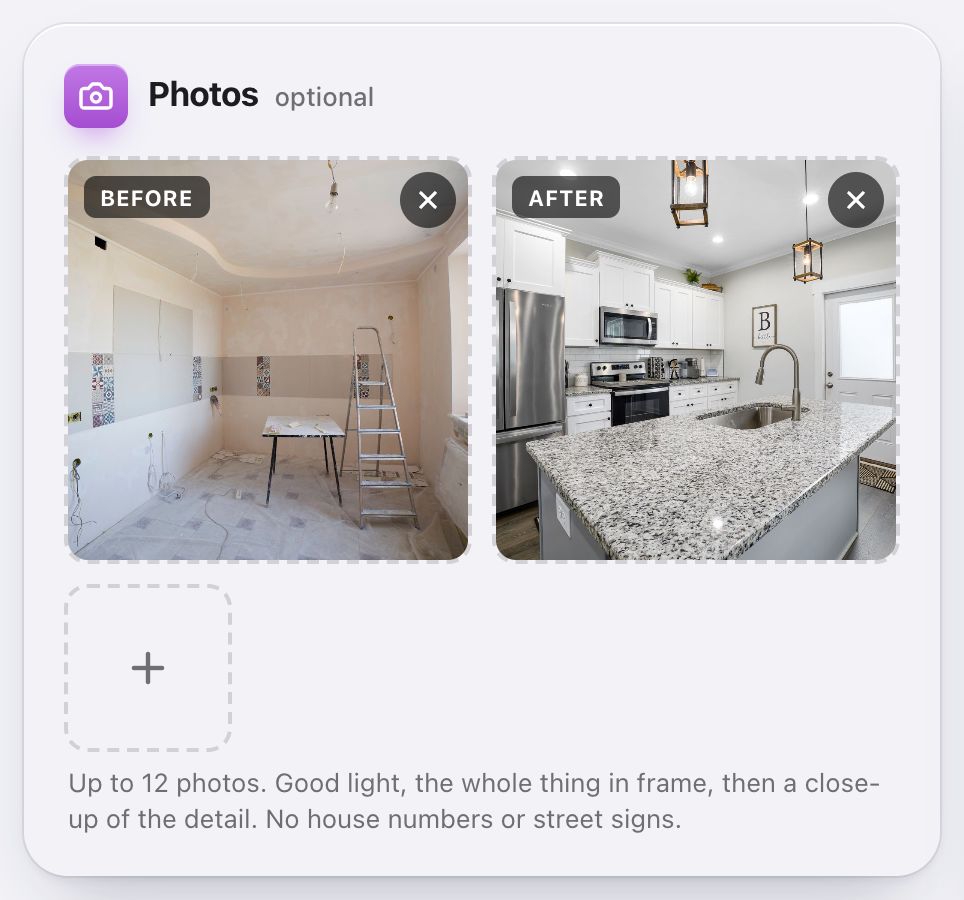
- Up to 12 photos on a finished job. An open job holds up to 25 while your crew adds them.
- Good light, the whole thing in frame, then a close-up of the detail.
- No house numbers or street signs.
-
Name the job and give the result
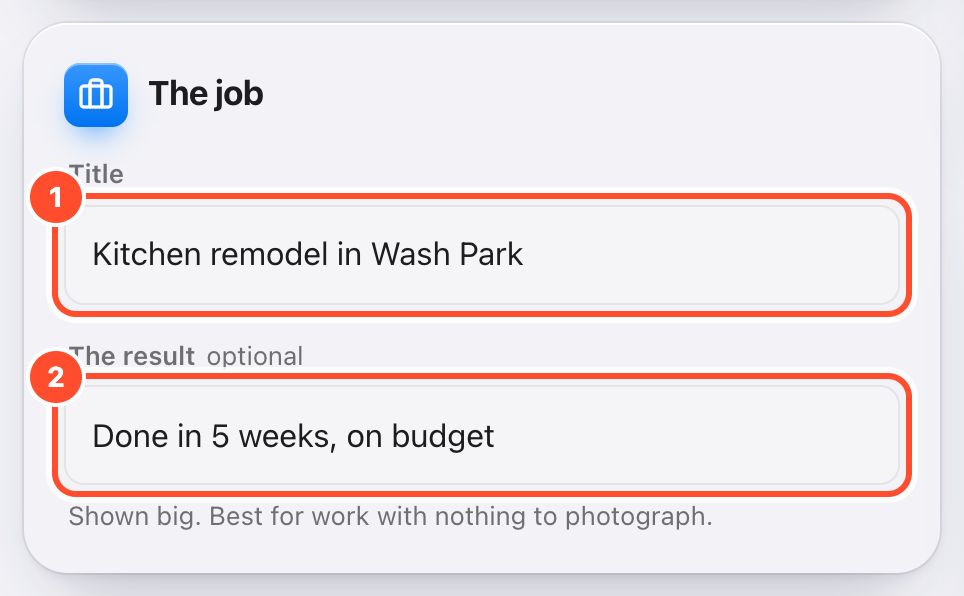
- 1. Title
- What the job was, and where if that helps.Example Kitchen remodel in Wash Park
- 2. The result
- One short, specific line. A number if you can. This is what people remember.Example Done in 5 weeks, on budget
For other kinds of workYear-end books cleaned up in 10 days · $40,000 saved · Case settled in 3 months
-
Tell the story in two lines
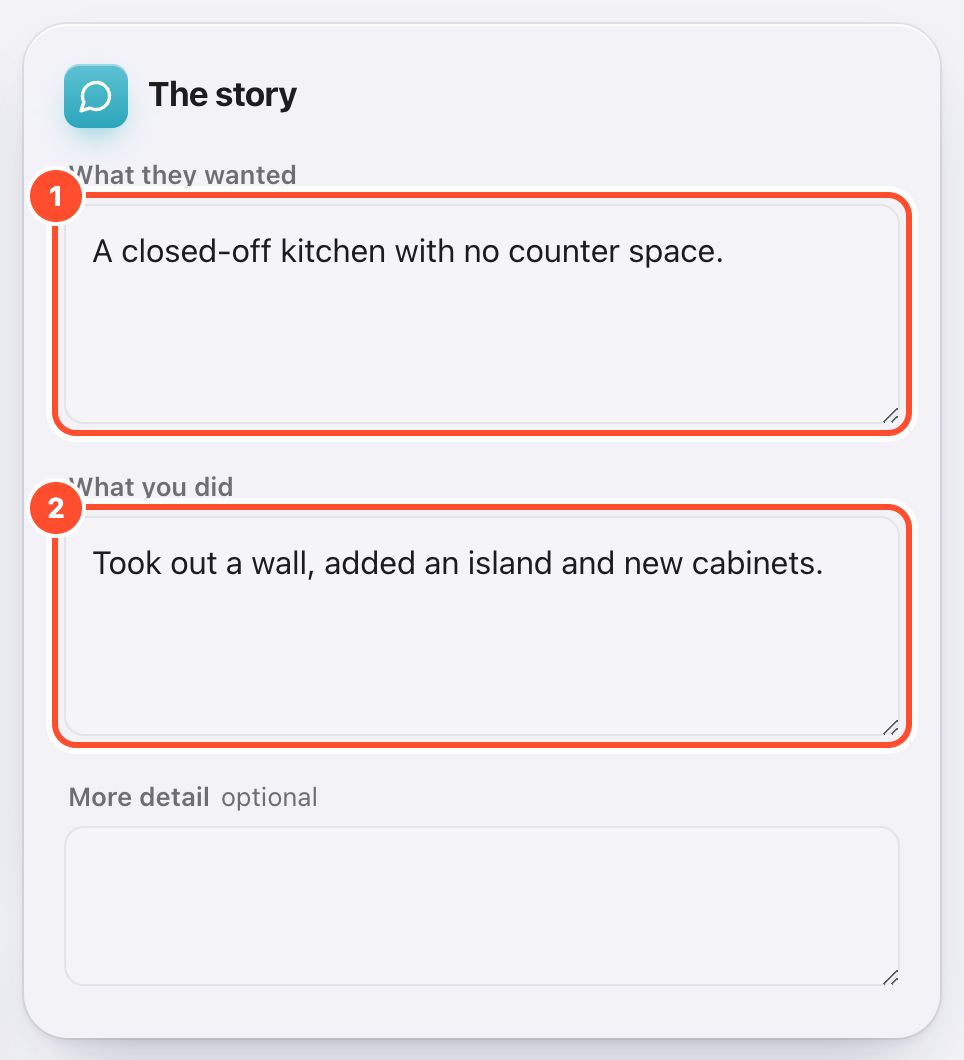
- 1. What they wanted
- The problem they came to you with. Two lines is plenty.Example A closed-off kitchen with no counter space.
- 2. What you did
- What you did about it, in plain words.Example Took out a wall, added an island and new cabinets.
- More detail
- Optional. Most jobs do not need it.
-
Add tags, if they help you
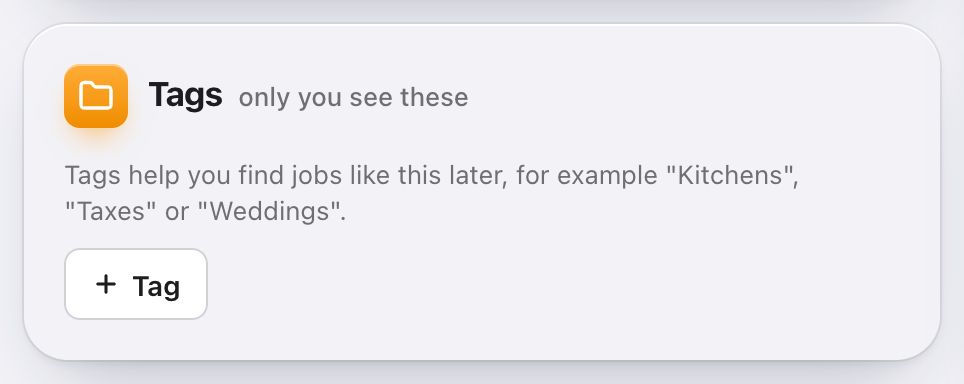
Tags are only for you. They help you find jobs like this one later, such as "Kitchens", "Taxes" or "Weddings". Click + Tag to add one.
-
Fill in the private part
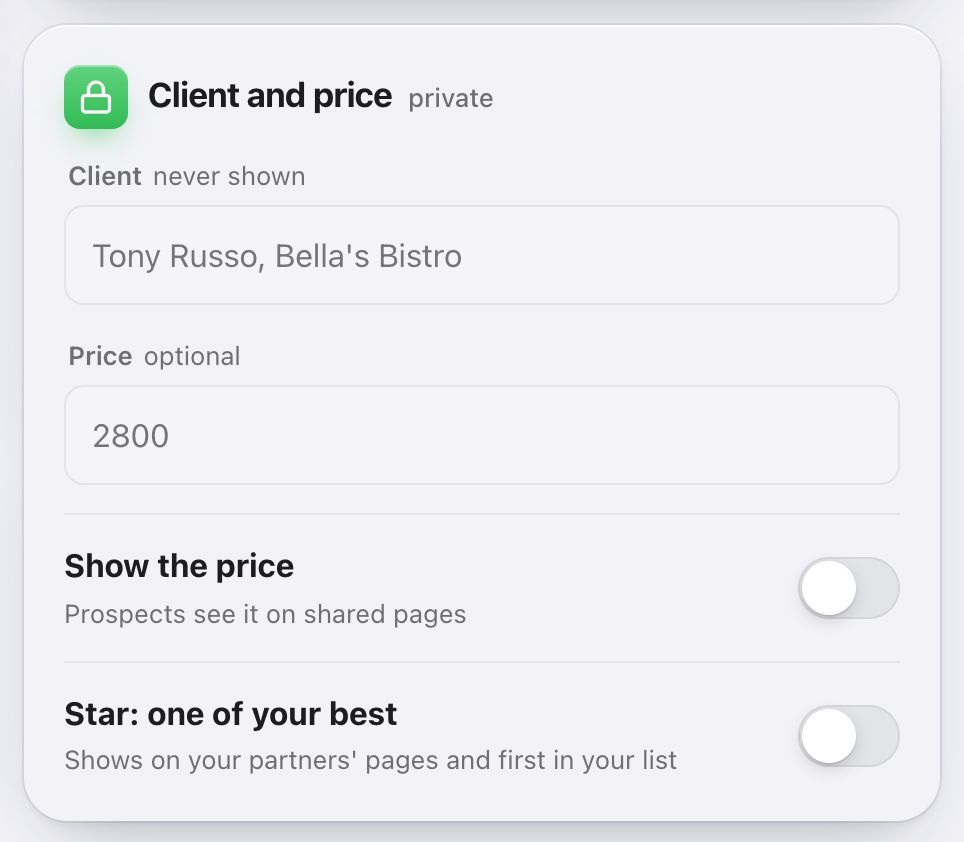
- Client
- Their name, for your records. It is never shown on a shared page.
- Price
- Optional. Stays private unless you switch on Show the price.
- Star: one of your best
- Same as the star on the job. See the next step.
-
Finish a job your crew worked on
When you mark a referral as Became a client, the job appears by itself under Open jobs on Proof, and your crew can add photos. When the work is done, click Job done. Tap the photos to keep, up to 12, and the button tells you how many will be deleted, like Keep 12 and delete the other 13. Nothing is deleted until you click it.
-
Save, then star your best
Click Save. Back on Proof, click the star on your best jobs. Starred means public: those are the jobs that show on your partners' pages.
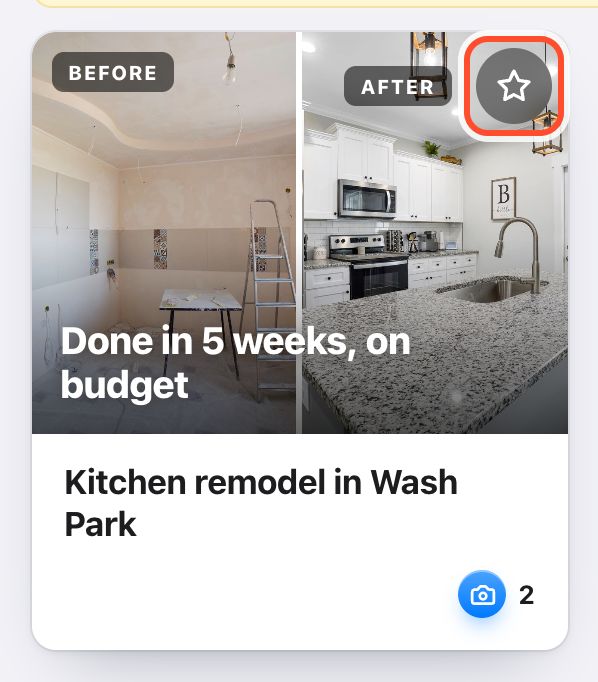
Before: an empty star. 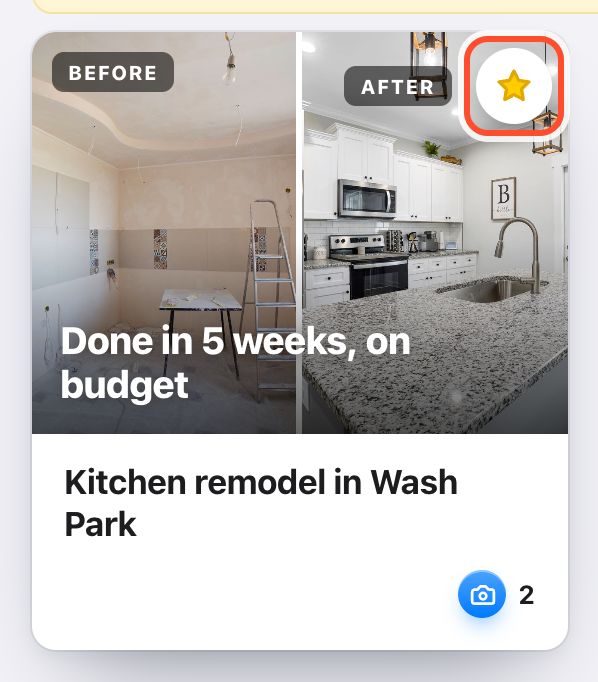
After: a gold star. It now shows on your partners' pages.
Stuck? Write to us at support@bonafidecrew.com.