All tutorials
Posts, QR flyers and your Website Box
Your proof can work for you in three more places. We never post anything for you: you download it and post it yourself, wherever you like.
-
Make a post
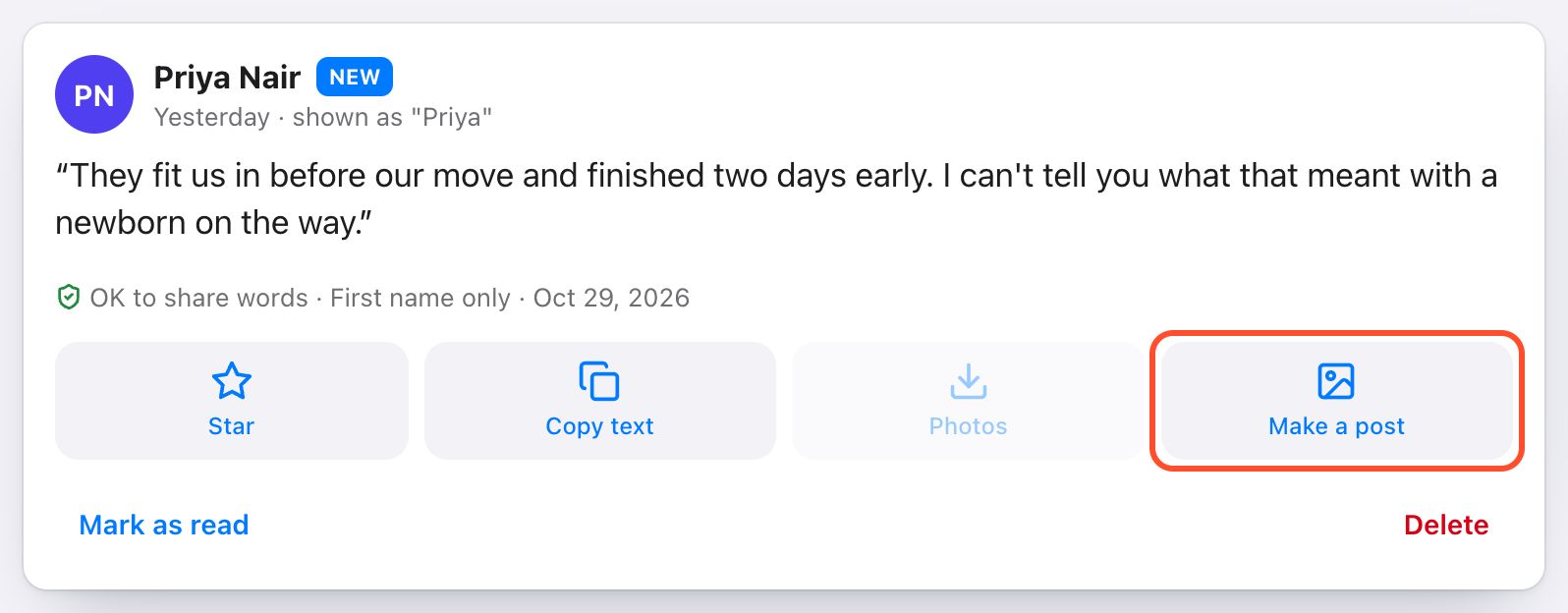
On Testimonials, click Make a post on any testimonial.
-
Make it look right
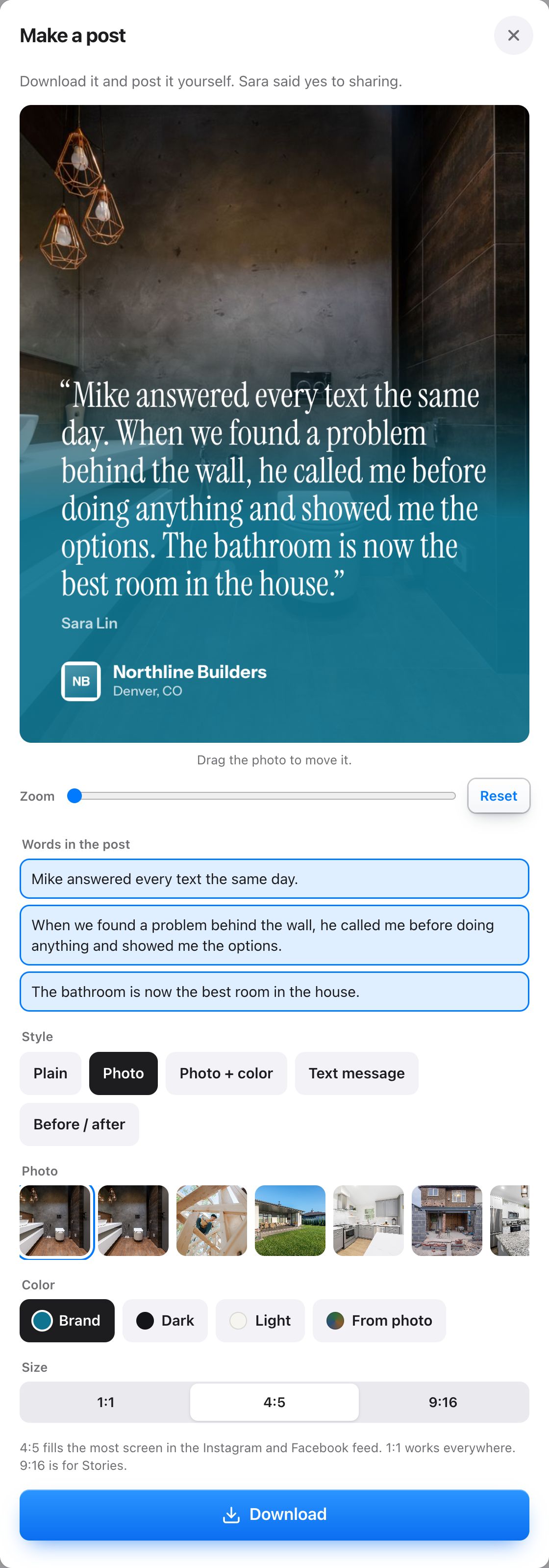
Zoom is 1, Download is 2. - The photo
- Drag it to move it. Use the Zoom slider to go closer. Reset puts it back.
- Words in the post
- Click a sentence to take it out or put it back. Short posts get read.
- Style
- Plain, Photo, Photo + color, Text message or Before / after. Some need a photo or a job with both photos.
- Photo
- Pick from the client's photos or your jobs.
- Color
- Brand, Dark, Light or From photo.
- Size
- 1:1 works everywhere. 4:5 fills the most screen in the Instagram and Facebook feed. 9:16 is for Stories.
-
Download and post it yourself
Click Download. You get a picture ready to post.
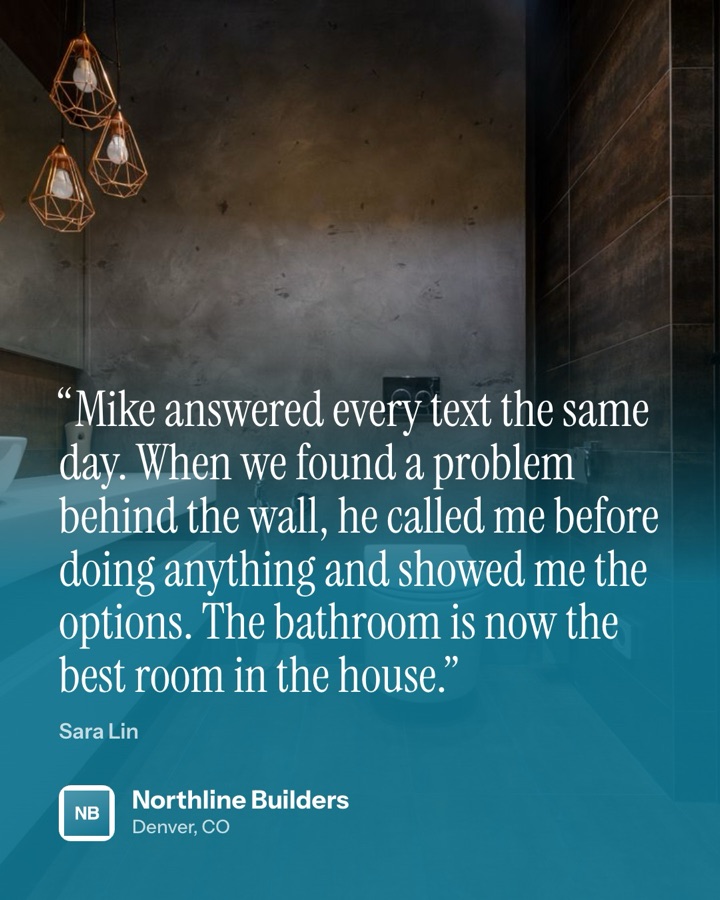
A finished post at the 4:5 size. -
Print a flyer or cards
Open any partner and click Print a flyer or cards. Pick what you want at the top, then click Print.
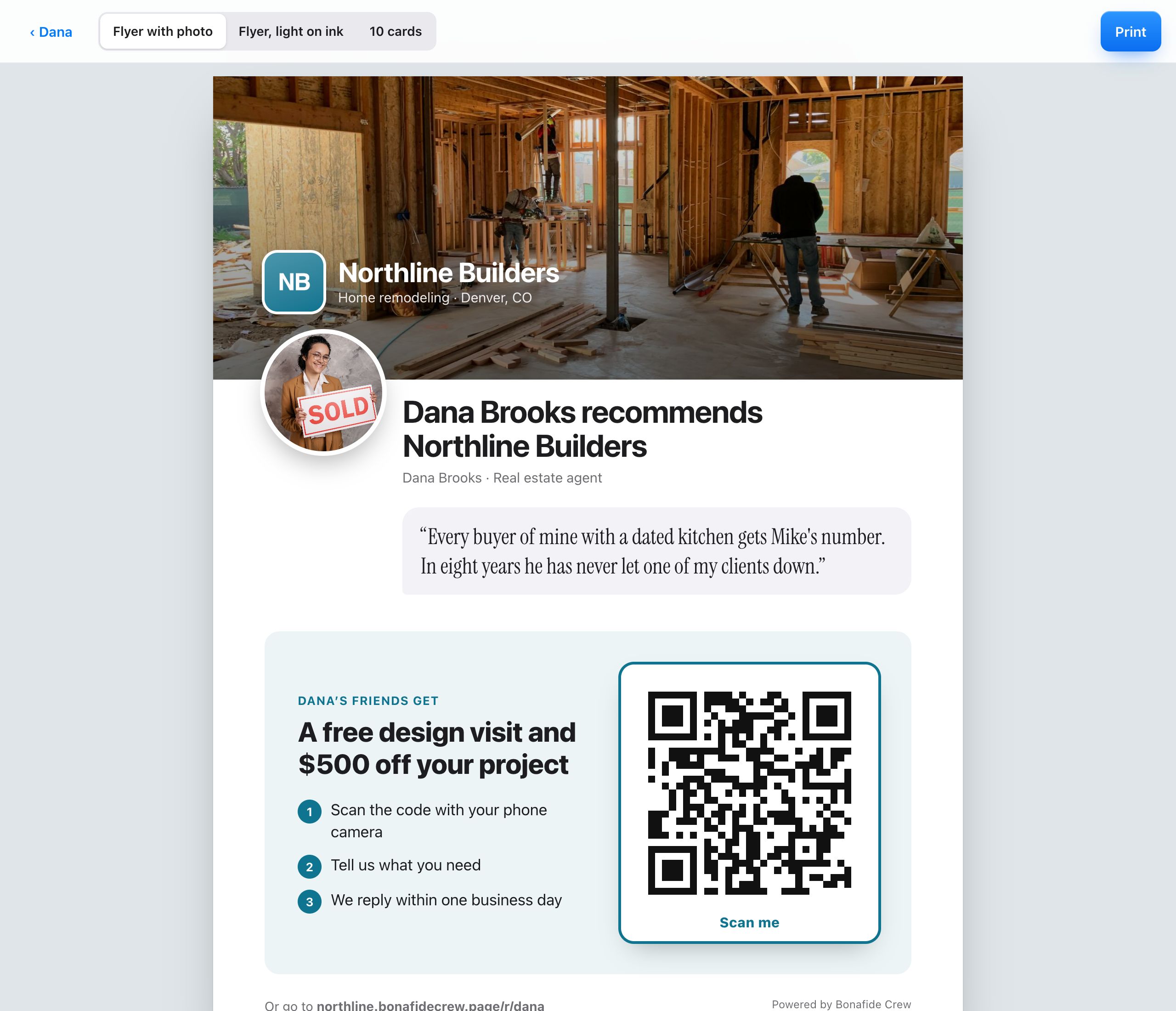
- Flyer with photo
- The full flyer, with your cover photo.
- Flyer, light on ink
- The same flyer for a home or office printer.
- 10 cards
- Ten small cards on a page, to cut and hand out.
-
Put testimonials on your website
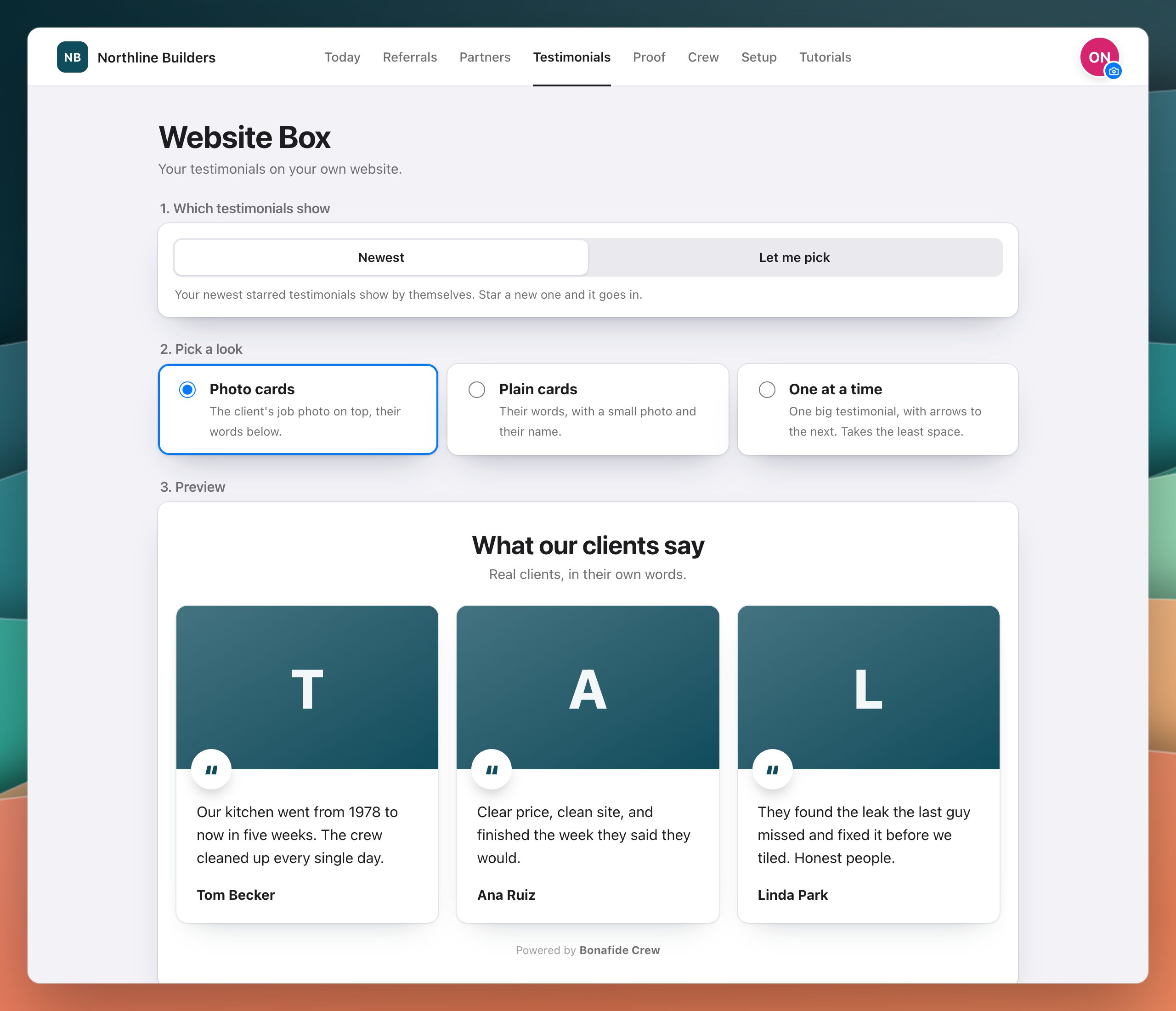
On Testimonials, click Website Box. Pick a look: Photo cards, Plain cards or One at a time. You see a preview right there.
Your newest starred testimonials go in by themselves. To choose them yourself, click Let me pick and tick the ones you want. They stay on your partners' pages either way.
-
Copy the code
Click Copy the code, then:
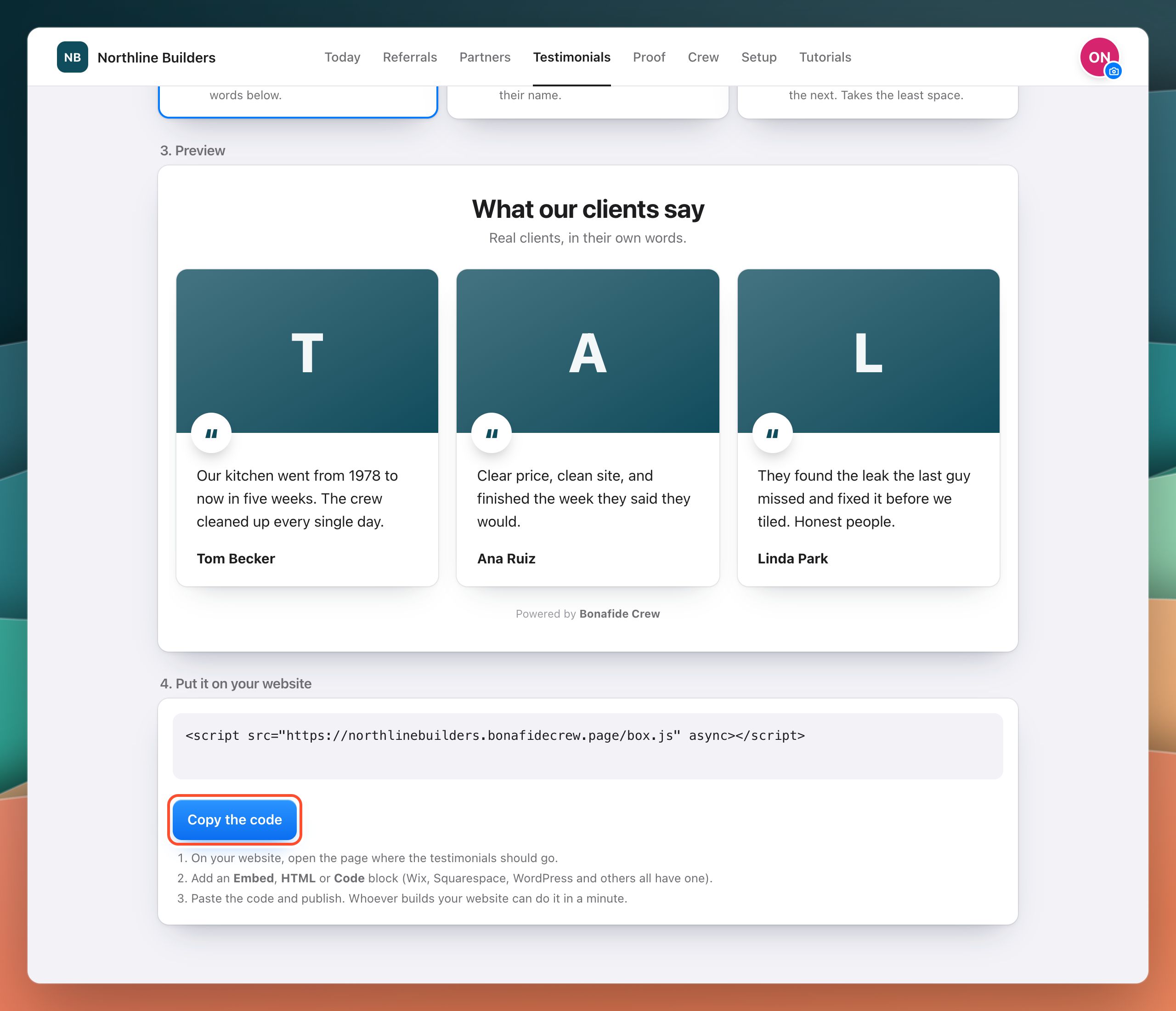
- On your website, open the page where the testimonials should go.
- Add an Embed, HTML or Code block. Wix, Squarespace, WordPress and others all have one.
- Paste the code and publish.
Stuck? Write to us at support@bonafidecrew.com.