Getting started
Your account opens on Today, with a short list of six steps. Do them in order: by the time you add your first partner, the page they share is already full of your work.
-
Find your list on Today
Click Today in the menu at the top. Each step has a button that takes you to the right screen. When you finish a step, it ticks itself off and the next one is ready.
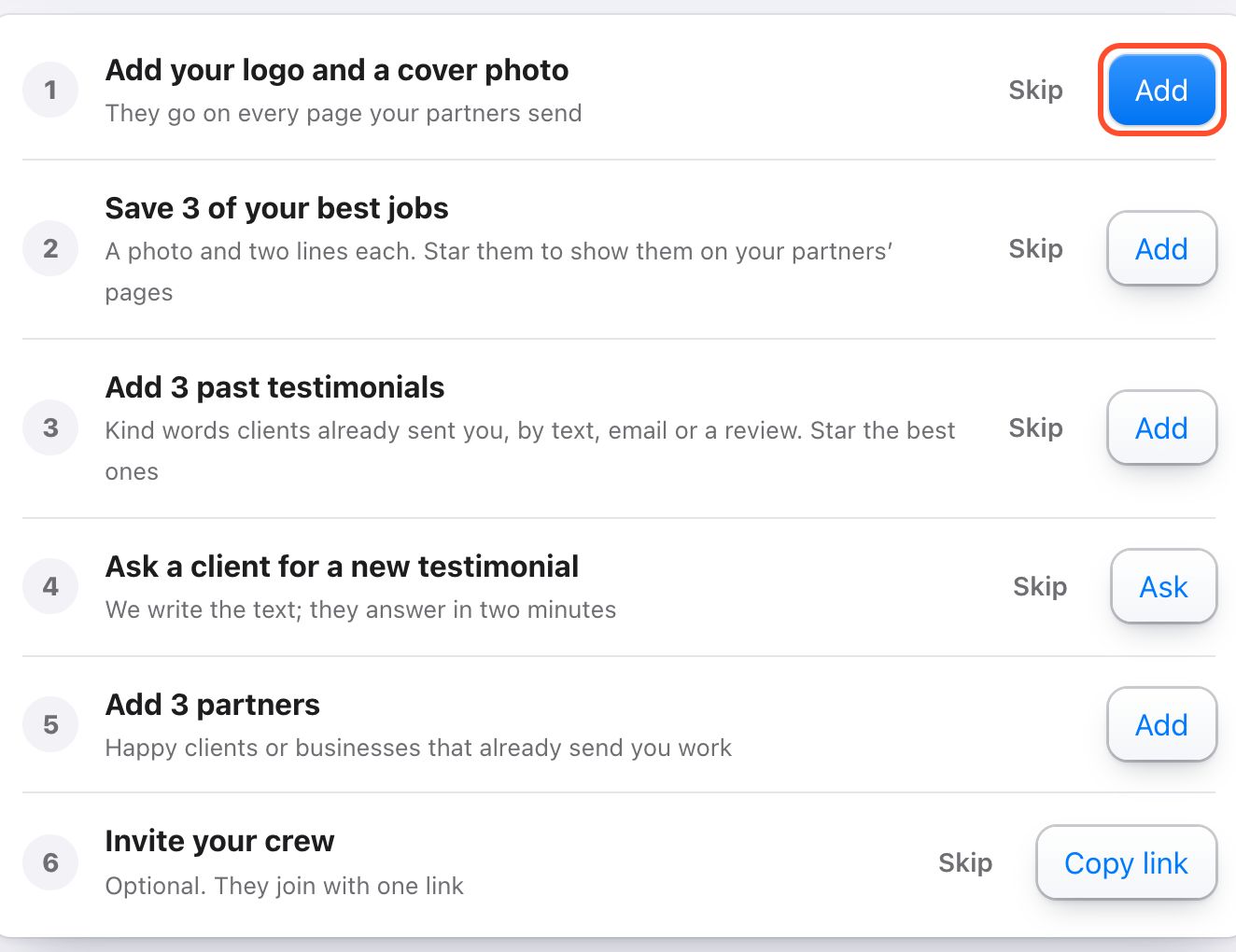
Start with the first Add button. -
Add your logo and a cover photo
These go on every page your partners and clients see, so everything looks like yours from the start.
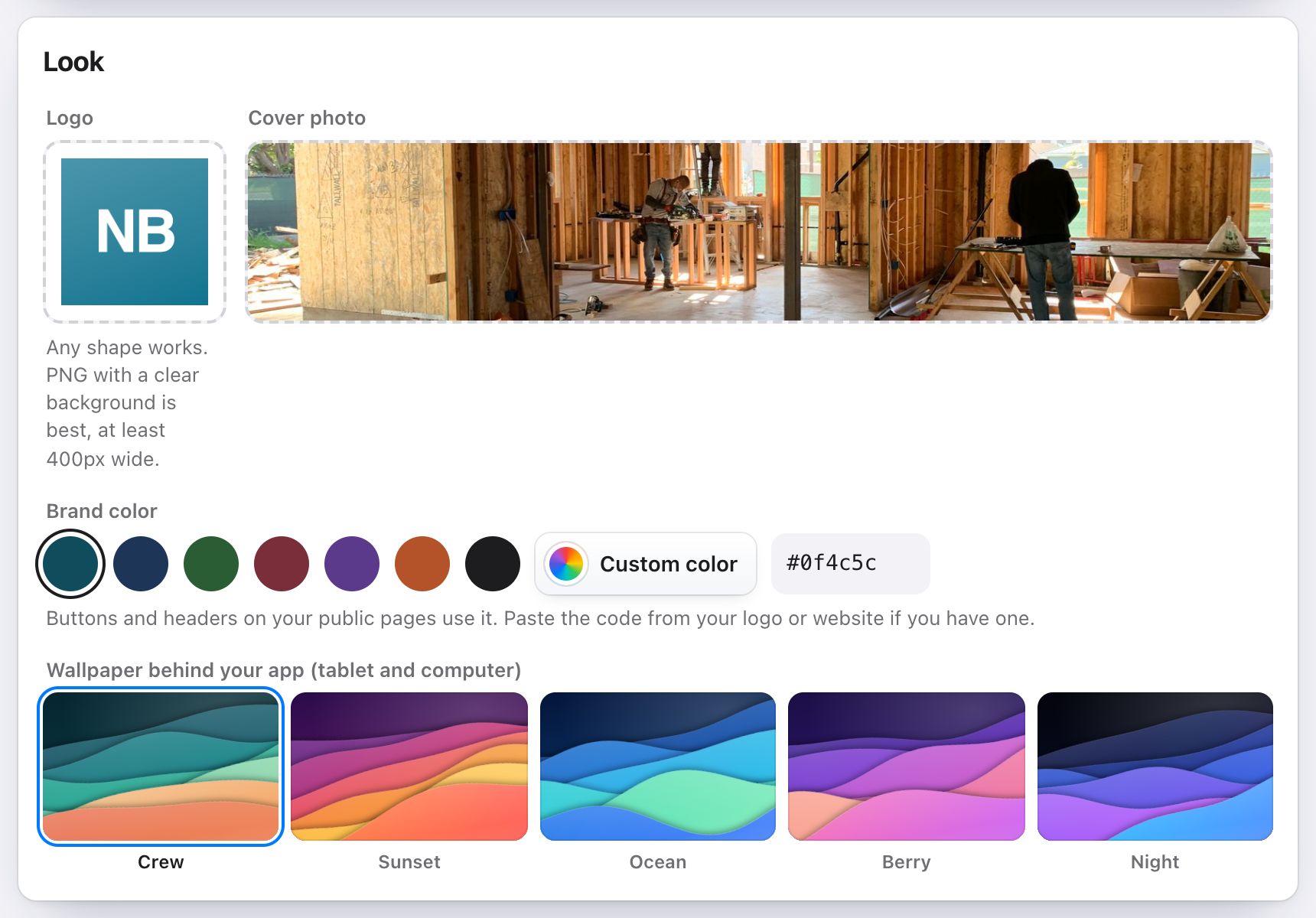
- Logo
- Any shape works. A PNG with a clear background looks best, at least 400 pixels wide.
- Cover photo
- A wide photo of your work or your team. It sits at the top of your pages.
- Brand color
- Pick one, or paste the exact code from your logo. Buttons and headers on your public pages use it.
-
Save 3 of your best jobs
A photo and two lines each. Then click the star on each one, so it shows on your partners' pages.
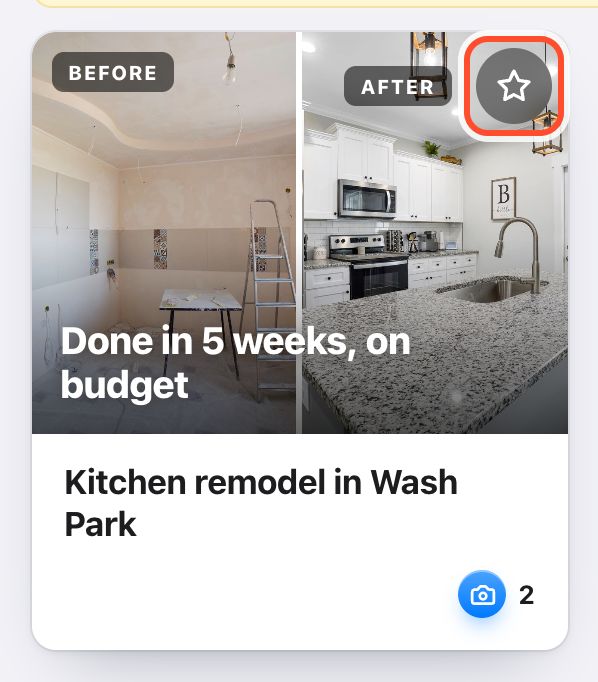
The star is at the top corner of each job. -
Add 3 past testimonials
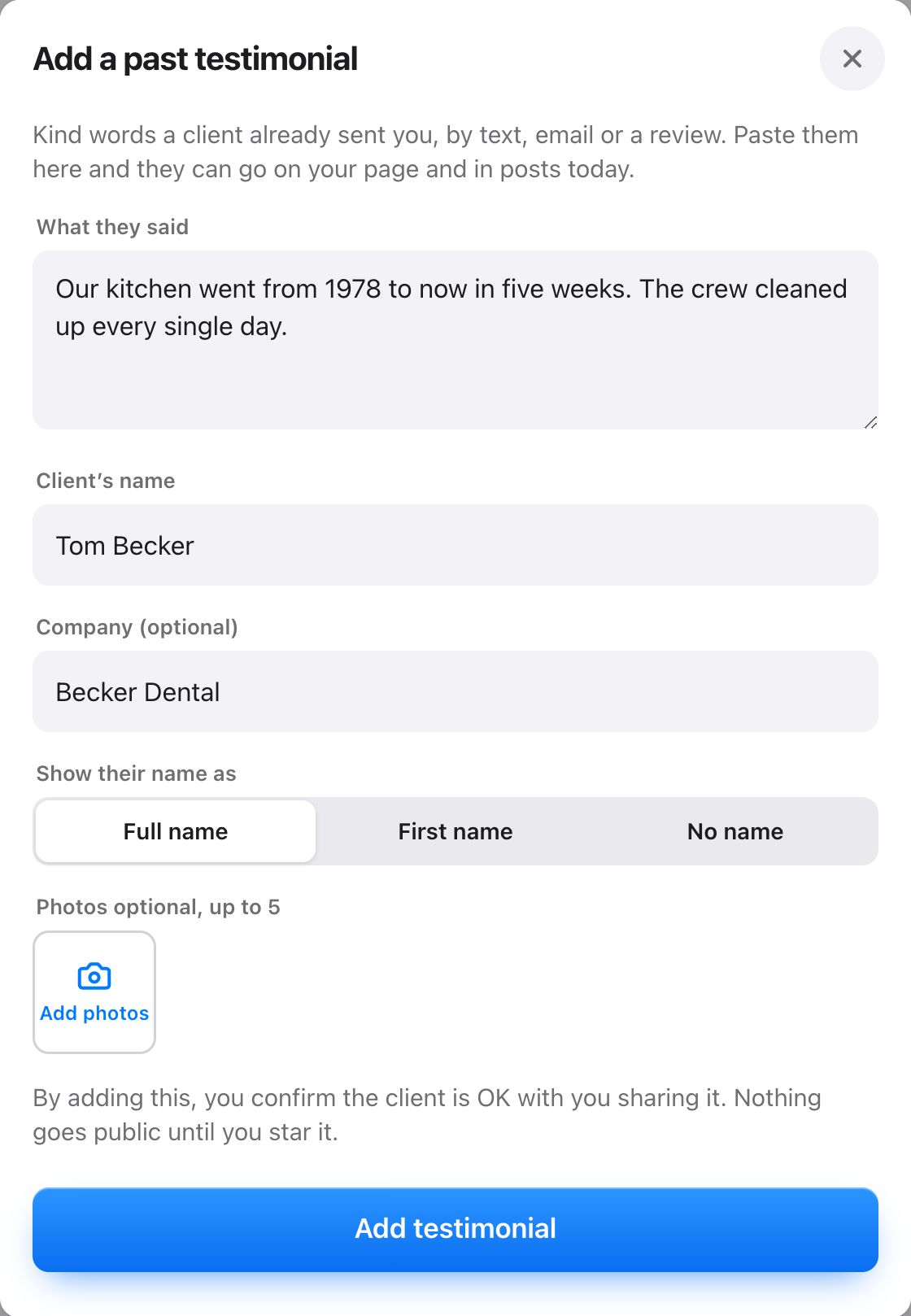
You already have these: kind words clients sent you by text or email, or left in a review. Paste them in. Click Add testimonial. That confirms the client is OK with you sharing it. Then click Star on the ones you want on your pages.
-
Ask one client for a new testimonial
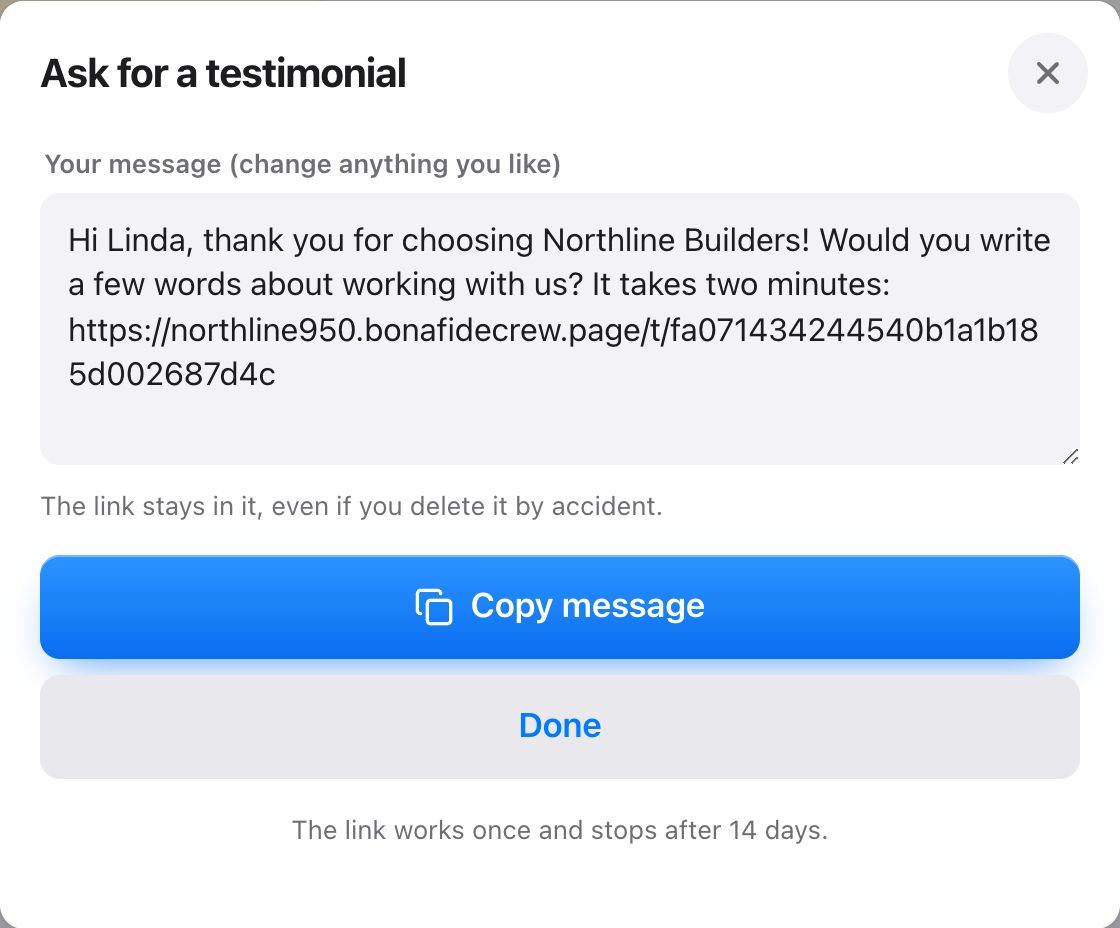
Type their name and click Make the link. We write the message. Click Copy message and send it from your own phone, so it comes from you.
-
Add 3 partners
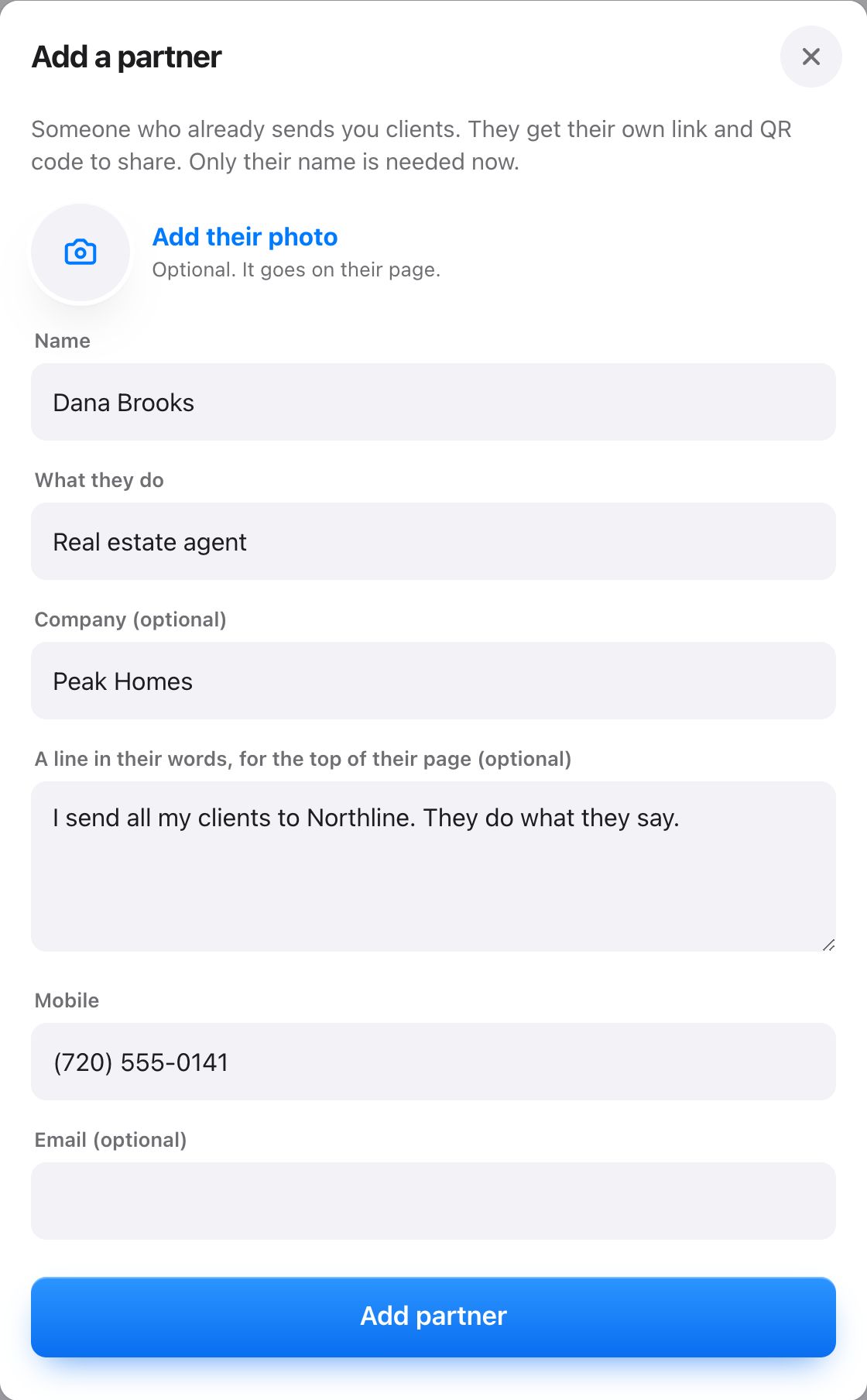
Partners are the people who already send you work: past clients, real estate agents, other trades. Add their name, what they do and their mobile, then click Add partner.
-
Invite your crew (optional)
If you have a team, click Copy link on this step and send it to them. If it is just you, click Skip.
-
From now on, Today is your daily list
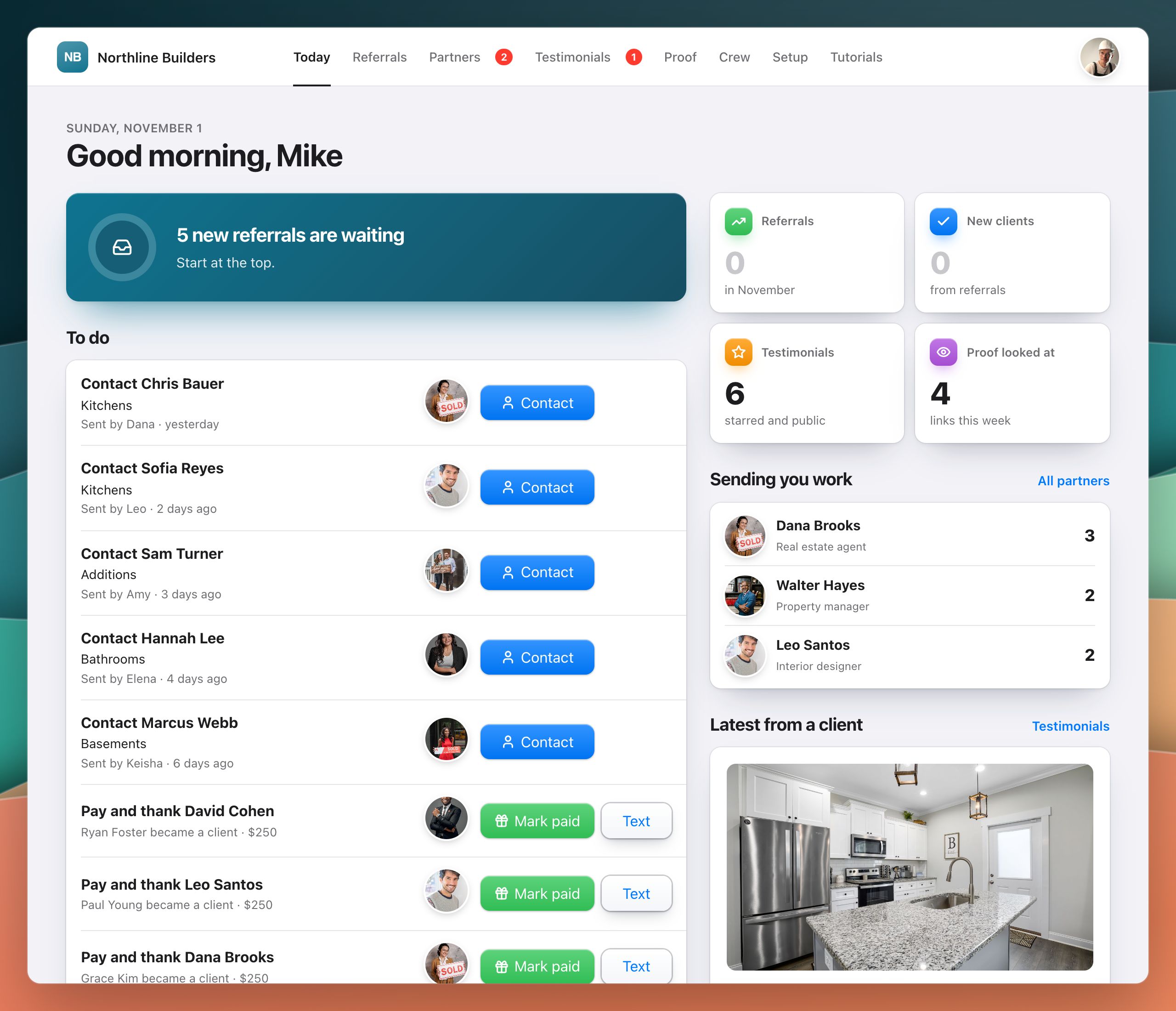
Once the steps are done, Today shows only what really needs you: someone to contact, a partner to thank, a job to finish. Each card has one clear button. Do it, and the card goes away.
Stuck? Write to us at support@bonafidecrew.com.